POV-Ray Program by Jay Tanner - 2025
Color-Coded Diagrams
-
Making Color-Coded Diagrams and Charts
When making color-coded diagrams, turning off the lunar phase shading and 3D relief may produce a better, smoother result. This can usually be done in fast RenderMode 1.
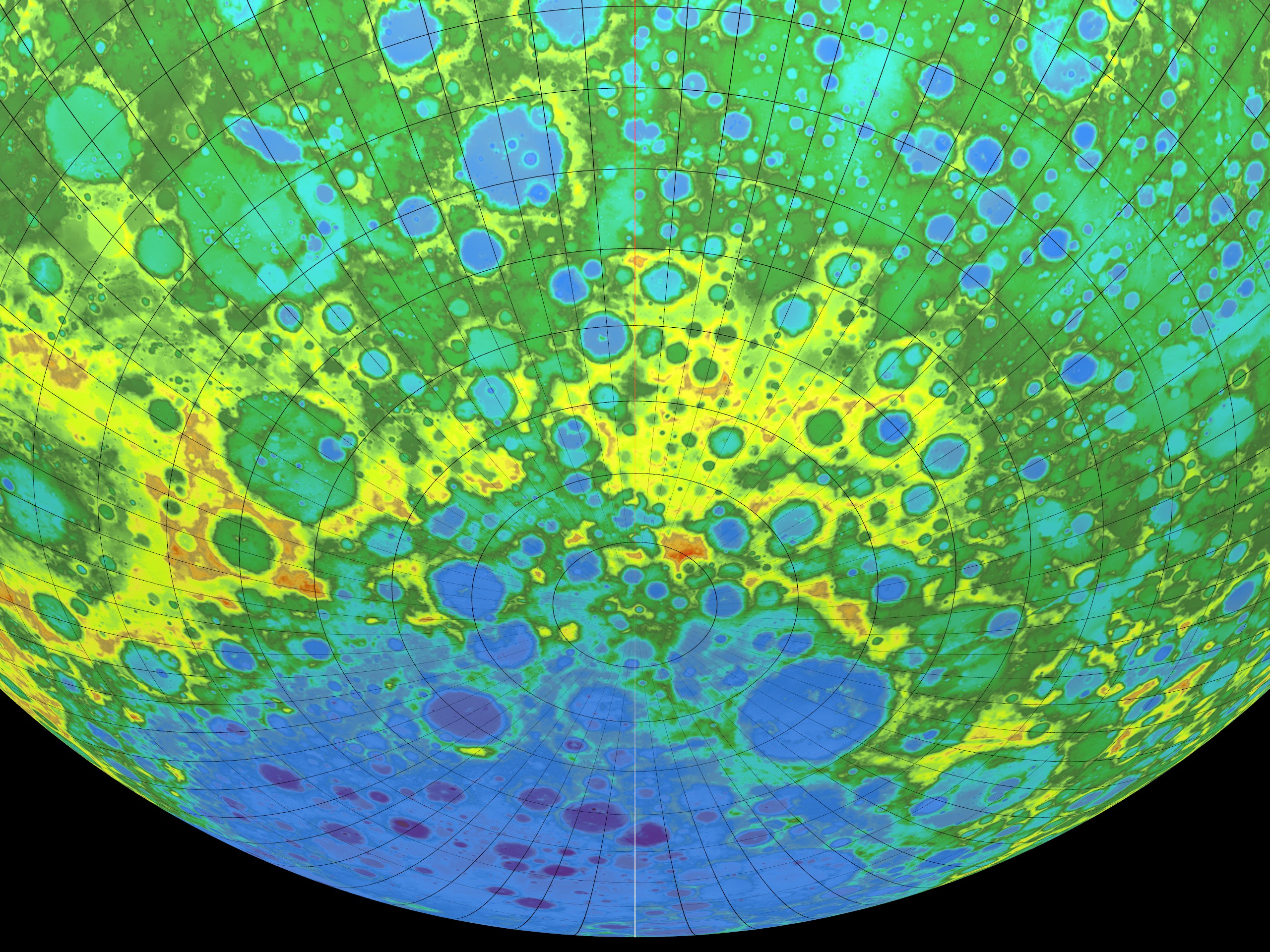
In this example, we will render the altimetry of the lunar south polar region using the color-coded altimetry map./* ------------------------------------------------------------ SET PATH TO SELECTED SURFACE TEXTURE MAP FROM ABOVE LISTING. ASSUMES MAPS FOLDER IS WITHIN THE HOME FOLDER BY DEFAULT. */ #declare SurfaceMap = "MAPS/lunar-altimetry-map-w-5x5-grid.png";
The camera is centered on latitude -50 (South), longitude 0 degrees, so that we can get a view of the south polar region altimetry.// ------------------------------------------------------- // CAMERA/EYE SELENOGRAPHIC COORDINATES AT CENTER OF VIEW. #declare CamLat = -50.0; // -S/N+ Range: 0 to +/- 90 #declare CamLon = +000.0; // -W/E+ Range: 0 to +/- 180
NOTE: It may be necessary to adjust the sunlight level for certain maps so that the rendering is not too dark or too light.
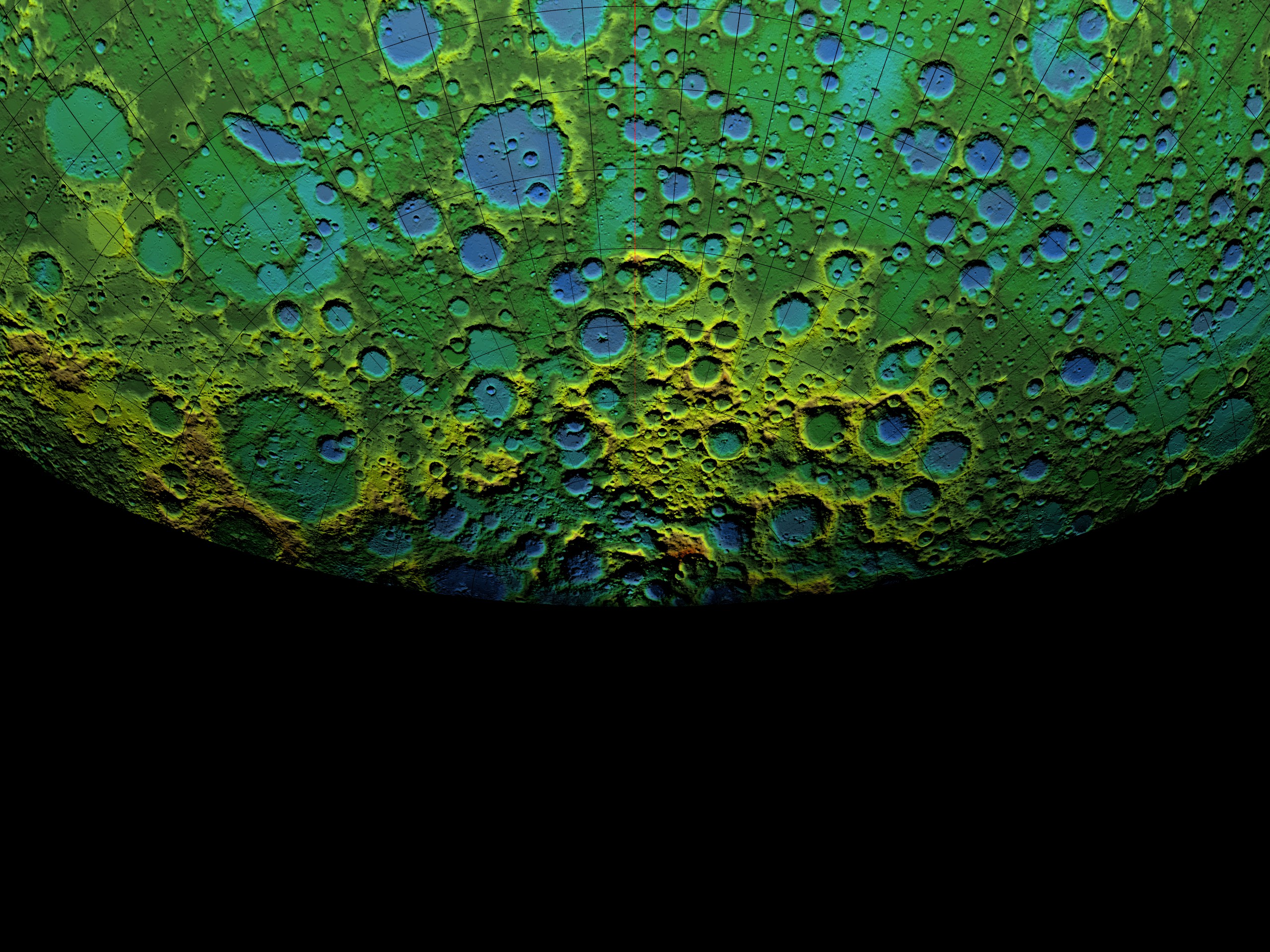
Notice that the shading and 3D relief makes it harder to visualize the altimetry color-coding clearly. However, we don't actually need the shading or 3D relief in this particular case.
Any simple graphics image editor can then be used to add any desired text labels to the rendered diagram.
To turn OFF the shading, simply set the surface ambience level to 1.000.
Then turn OFF the 3D relief setting to get a smooth sphere surface.
This is the same rendering as before, except now, there are no
shadows to interfere with the color-coding.
// Set Sunlight / Earthshine / Surface Ambience Levels

   #declare SunlightLevel   = 1.000; // Solar brightness level   Default=1
   #declare EarthshineLevel = 0;     // Earthshine level n/256   Default=4
   #declare SurfAmbiLevel   = 1.000; // Surface ambience level   Default=0
// ----------------------------------------------------------
// Set Optional Switch To Apply 3D Shaded Relief - Default=ON

   #declare ReliefSwitch = "OFF";